


Managing multiple desktops in macOS is a common method for staying organized. Mission Control lets you separate tasks and reduce the visible clutter. This sounds cool in theory, doesn’t it? However, in practice, too many desktops will only fragment your attention. Constant swiping between spaces and searching for open windows is not exactly the definition of productivity. For some users, the decision to disable multiple desktops on Mac restores the clarity they need.
When your workspaces feel scattered, it makes sense to review how they are configured. Many users need to figure out how to disable spaces on Mac when the extra desktops start interfering with their productive flow. But desktop clutter isn’t always the root cause – system instability can make things worse. If your Mac frequently freezes or lags while switching between spaces, it may be worth looking into fix crashing Mac using CleanMyMac to rule out deeper performance issues before adjusting your workspace setup.
Reducing the number of active desktops will calm the visual noise down. It will be easier to track open apps and move between tasks without relying on Mission Control previews too much. This is the first practical step towards a more consistent focus.
How macOS Desktops Influence Your Work
macOS manages multiple desktops through Mission Control. There, you can create, remove, and rearrange Spaces. This system is meant to separate projects into distinct visual environments. You may use one desktop for communication tools, and another one for focused work, like development or content creation. This separation can reduce the visible clutter and support deeper focus.
But there’s another side to Spaces. When full-screen apps or Split View sessions automatically create new Spaces, the number of desktops will grow without a clear structure. What was meant to simplify your work starts demanding a lot of navigation effort. You’ll find yourself spending significant time swiping between desktops and searching for the right windows. It’s not easy to mentally track where specific tasks are.
Maintaining several active desktops with open apps will also affect the system’s memory pressure. macOS is very effective at allocating resources, but switching between busy Spaces will be slower on older machines. You may notice subtle delays in animations or transitions. This definitely interrupts your workflow.
So how do you effectively optimize Mac workflow? The solution is in balancing flexibility with control. Multiple desktops are not necessarily a problem. Your productivity will peak when Spaces reflect clear task categories. But if they accumulate by default, they only make navigation difficult.
Sometimes It’s Best to Disable Multiple Desktops on Mac
When multiple desktops work as a deliberate system, they are useful. But multiple Spaces created without a clear purpose are a problem. If you notice frustration when switching between desktops, it may be time to return to a simple layout.
Constant context switching is the biggest issue. You’re moving between three, four, or five desktops to complete a single task. That’s a serious cognitive load because each swipe asks your mind to reorient, identify the open window, and recall what it was previously doing. It’s not that big of a deal if it happens once. But if you’re constantly doing this, you’re slowing down your productivity.
Another indicator that it’s time to disable multiple desktops is losing track of app locations. If the same app shows up across different Spaces or the windows are scattered, you will have to rely on Mission Control previews to locate active work. You caught yourself doing that? Then the layered desktop structure is working against your efficiency.
Pay attention to your performance. If your system has limited RAM or an older processor, maintaining several active Spaces strains it. Modern Macs can easily handle multitasking. Still, keeping the desktops to a bare minimum is the best way to ensure flawless macOS performance.
These are the clear signs that your workspace is over-engineered:
- You often forget where a specific app is open
- You swipe through desktops to find a document
- Full-screen apps generate new Spaces all the time
- You frequently reorganize desktops
- You depend on Mission Control previews to navigate
You won’t become disorganized if you disable extra desktops. Reducing the number of Spaces to one or two can bring some clarity, but you’ll still maintain the separation between the most important tasks.
Here’s How to Make Your macOS Desktop Setup Simple
There’s no need for advanced configuration. A few adjustments to Mission Control and window management settings are enough to bring your focus back on track. Our goal is to remove unnecessary complexity, but maintain the organization.
Here’s how to do it:
1. See what’s going on at the moment
Open Mission Control to see how many desktops are currently active. Which ones do you actively use? Are there some that exist only because full-screen mode automatically created them? If you see Spaces without a clear role there, they should be removed.
2. Remove what you don’t need
Within Mission Control, hover over the inactive desktops and close them. If your goal is to disable multiple desktops entirely, you can keep a single primary workspace and avoid creating new ones unless you absolutely need them.
3. Adjust the preferences in Mission Control
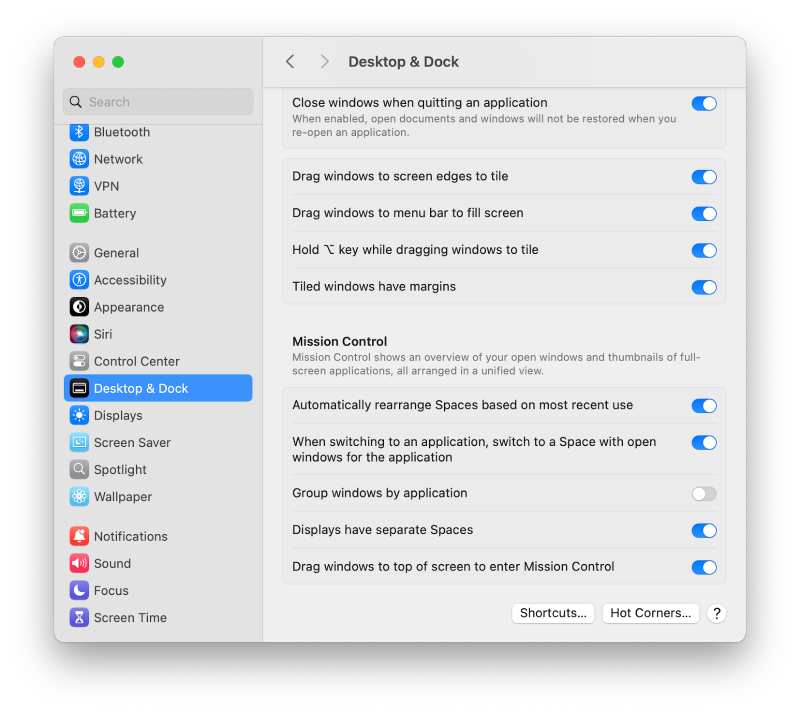
Go to System Settings > Desktop & Dock > Mission Control and check the options.
- Disable “Automatically rearrange Spaces based on most recent use.” With this, you’ll keep the layout stable.
- Turn off “When switching to an application, switch to a Space with open windows for the application.” This will prevent unpredictable jumps.
4. Limit full-screen mode
Full-screen apps automatically create their own Space. This is good for improving your focus in some cases, but frequent use leads to immense desktop fragmentation. Instead of going full screen, you can manually resize the windows.
5. Organize the most important applications
Grouping primary work tools within a single desktop is the most efficient way to organize. Like this:
- Communication apps (Mail, Slack, Messages)
- Main task software (IDE, writing app, design tool)
- Reference materials (browser windows, documents)
Keeping all related apps within one Space will make navigation easier. It will also minimize the need to rely on Mission Control previews.
Remember: more structure doesn’t necessarily lead to more productivity. When you accumulate too many Spaces, you’ll just get confused. Simplifying the desktop layout is a great way to restore your clarity.